
Cost your treats for profit in 5 minutes
Whether you bake at home, sell at markets or run a storefront, here's the simple workflow behind every price Dog Treat Profit Lab gives you.
The costing workflow
- 1
Add a recipe
Create a recipe and choose how you measure the batch — by treat count or by weight. This is the foundation everything else builds on.
- 2
Add your ingredients
For each ingredient, enter the pack size and its unit (g, kg, ml, cup…) and what you paid. The app converts units for you, so a 1-cup recipe using a 5 kg bag just works.
- 3
Add your packaging
Choose your primary packaging (bag, pouch, box) and any additional/secondary items like labels, stickers or ribbons. Cost is worked out per bag, not per batch.
- 4
Add labour, energy & equipment
Add how long the batch takes, your oven/electricity use, and any optional equipment hire. These are real costs most bakers forget.
- 5
Set your markup
Pick the markup you add on top of your costs. The classic bakery rule is 200% (3x your cost). Use the sliders or Wholesale/Retail/Premium shortcuts.
- 6
Read your prices
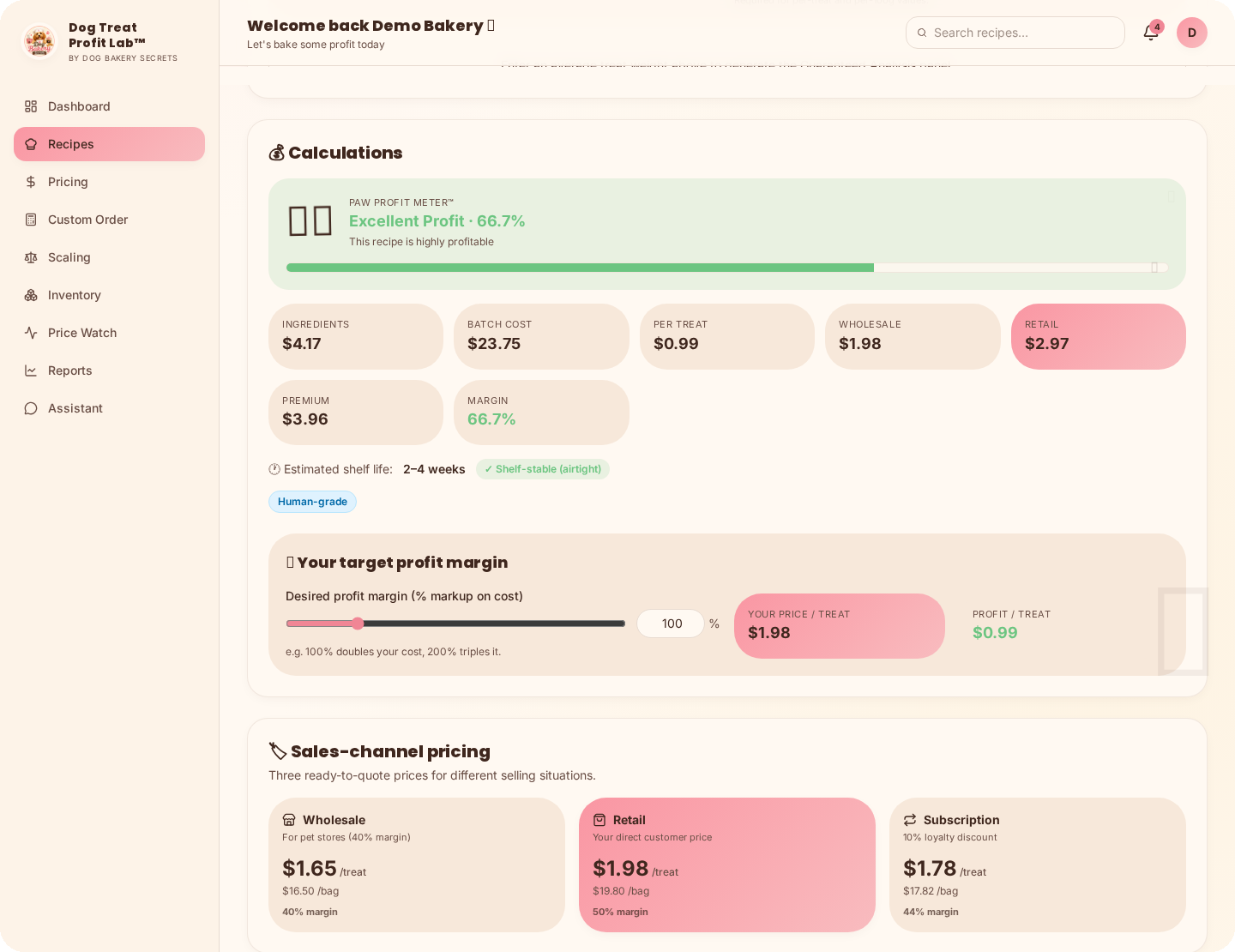
See your Wholesale, Retail and Premium prices per treat, your profit per treat, and the paw-profit meter. Adjust the markup until the number feels right for you.
See it in action
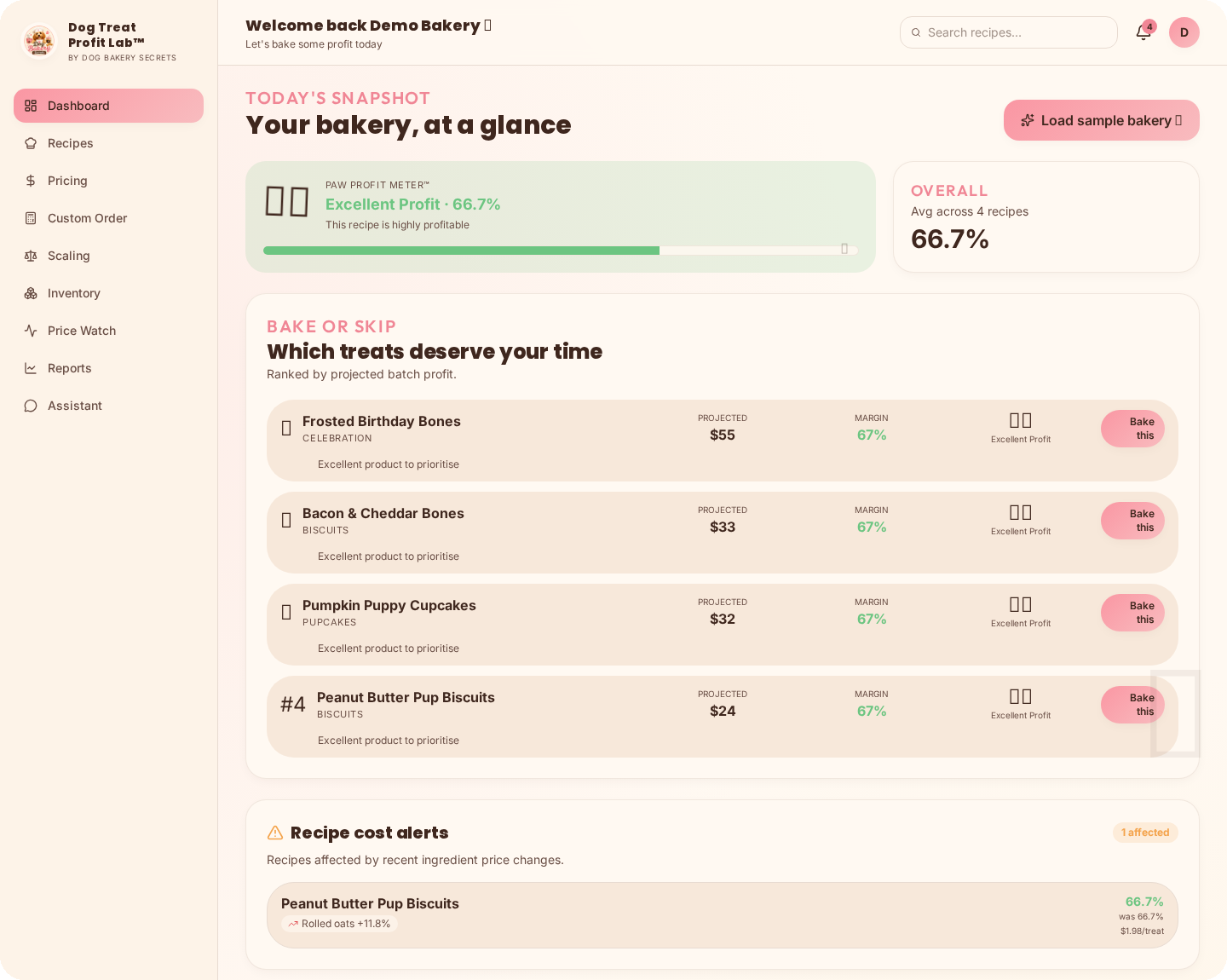
Real screens from the app — here's what you'll work with every day.
Every tool, explained
Dashboard
Your whole bakery at a glance — margins, alerts, revenue and stock. The paw-profit meter shows your average margin across all recipes.
Open Dashboard →Recipes
Create and cost each recipe by ingredient, packaging, labour and energy. Set your own markup and see per-treat prices instantly.
Open Recipes →Pricing Intelligence
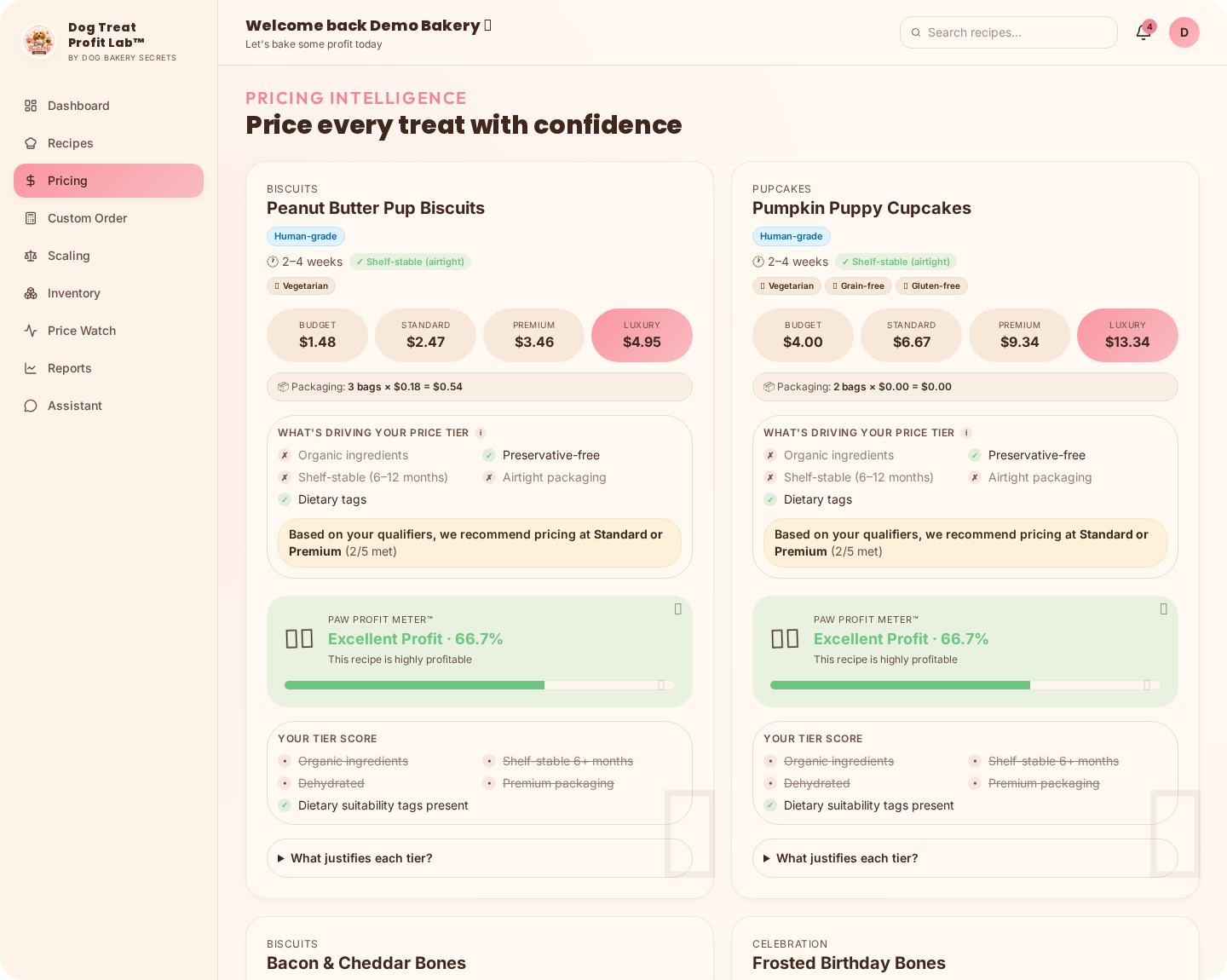
Compare budget, standard, premium and luxury price points for each recipe, with margin warnings when a price is too low to be worth baking.
Open Pricing Intelligence →Custom Order
Build a price for a one-off custom order with your own target margin, not a fixed recipe.
Open Custom Order →Scaling
See how costs and prices change when you scale a recipe up or down, so you can plan bigger (or smaller) batches.
Open Scaling →Inventory
Your pantry — ingredients and packaging with quantities, reorder levels, supplier and quality grade.
Open Inventory →Stock on Hand
Track finished treats/bags/packs ready for markets and orders. Link an item to a recipe to see its cost and retail value on the shelf.
Open Stock on Hand →Price Watch
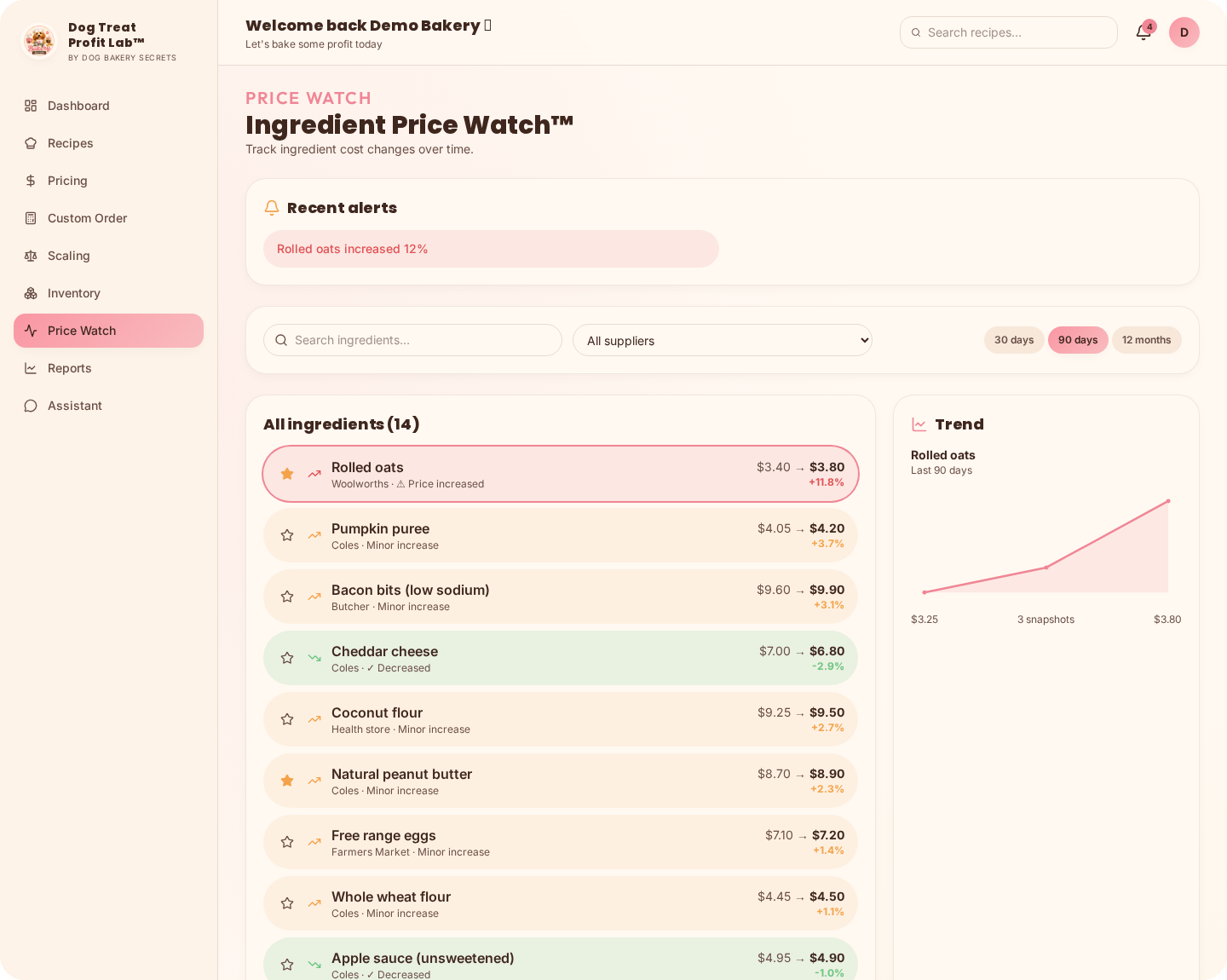
Track the prices you enter yourself over time and know when to buy. It does not fetch live supermarket prices.
Open Price Watch →Costs & break-even
A behind-the-scenes tool for rent, insurance, market fees and other business costs, to work out your monthly sales target.
Open Costs & break-even →Assistant
An in-app chat assistant to help with costing and pricing questions as you work.
Open Assistant →Frequently asked questions
How do I get started costing my first recipe?+
Open the Recipes tab and create a recipe, then add its ingredients with their pack size and purchase price. Add your labour, oven and packaging details, and the app works out your real cost per treat and a suggested price.
Where do the prices in Price Watch come from?+
Price Watch tracks the prices you enter yourself — it does not fetch live supermarket prices. Add your ingredient prices over time and the app shows you how they're trending.
Can I change how many treats a batch makes, or price by weight?+
Yes. On the recipe page you can set your batch by treat count or by total batch weight, and adjust packaging by treat count or by weight for bags or boxes.
How do I cancel my subscription or request a refund?+
Manage or cancel your subscription from the Billing page. We offer a 30-day money-back guarantee — refunds are handled by our payment provider Paddle; see the Refund Policy.
I'm in the Skool community. Do I need to pay?+
No. If you access the app through your Skool membership you keep full access. The paid subscription is only for general-public users who aren't Skool members.
Still stuck?
Send us a message from the Support page and we'll help you out, or email us directly.
Go to Support